Adding a door station and monitor in Philips Welcome Eye Connect 3 family mode
Want to add a secondary door station and a new screen and you don't know how to connect/configure them? Please find below the procedure below. It is advisable to be accompanied by a second person to do the procedure. |
Difficulty: Easy
Time required: 15 minutes
Number of steps: 7
Updated: June 2026
Step 1: Verification of Monitor 1 and Street Platinum 1
- Make sure the first door station is connected to the BUS A and BUS BUS B terminals of the first monitor.
- Make sure the door station can ring your monitor in the main (DOOR1).
- If the door station makes the instructor ring in secondary, iron it in the main one.
- Once the verification is carried out, make a factory reset of the monitor
- To make a factory reset, go to the Settings -> Reset -> And click on reset factory
Configuration of the door station into main street platinum
It is advisable to be 2 people in order to do the procedure because immediately after tensioning the appliance, it will have to be located in front of the door station.
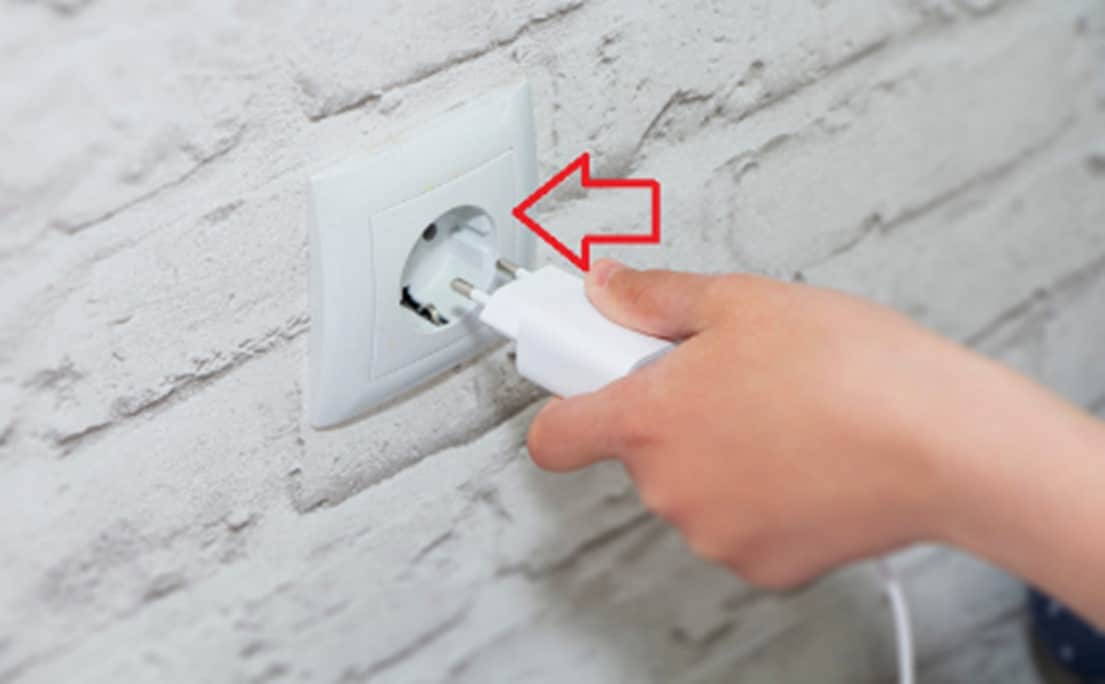
- Connect the AC adapter or turn your associated circuit breaker.
- If your device is already powered on, please remove its power supply and reconnect it.
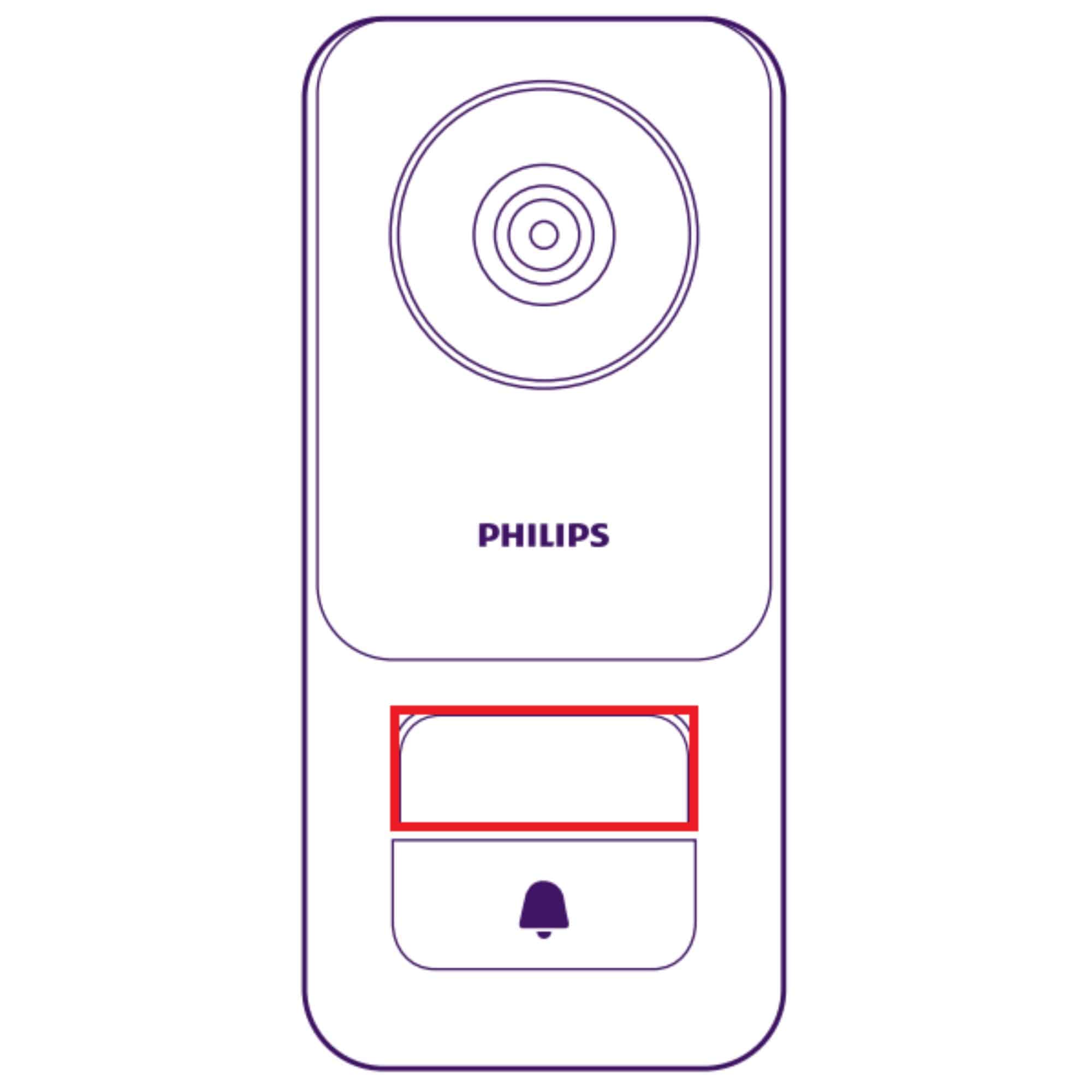
- Immediatelyafter turning on the monitor, press the top button (backlit door) of the door station andPress and hold it for 30 seconds until you hear a beepon the door station
- Street turntable is now configured as main door station
- Make sure that when pressing the door station, the DOOR1 indication is present on the monitor.
Step 2: Verification of Monitor 2 and Street Platinum 2
- Make sure the second door station is connected to the BUS A and BUS BUS B terminals of the second monitor.
- Make sure the door station can ring your monitor in the main (DOOR1).
- If the door station makes the instructor ring in secondary, iron it in the main one.
- Once the verification is carried out, make a factory reset of the monitor
- To make a factory reset, go to the Settings -> Reset -> And click on reset factory
Configuration of the door station into main street platinum
It is advisable to be 2 people in order to do the procedure because immediately after tensioning the appliance, it will have to be located in front of the door station.
- Connect the AC adapter or turn your associated circuit breaker.
- If your device is already powered on, please remove its power supply and reconnect it.
- Immediatelyafter turning on the monitor, press the top button (backlit door) of the door station andPress and hold it for 30 seconds until you hear a beepon the door station
- Street turntable is now configured as main door station
- Make sure that when pressing the door station, the DOOR1 indication is present on the monitor.
Step 3: Connecting the two monitors and the two street turntables
- Please follow this connection scheme
Step 4: Configuring Monitor 2 in secondary monitor
- Connect the AC adapter or turn your associated circuit breakerfor both monitors.
- Wait for the monitors to have started correctly.
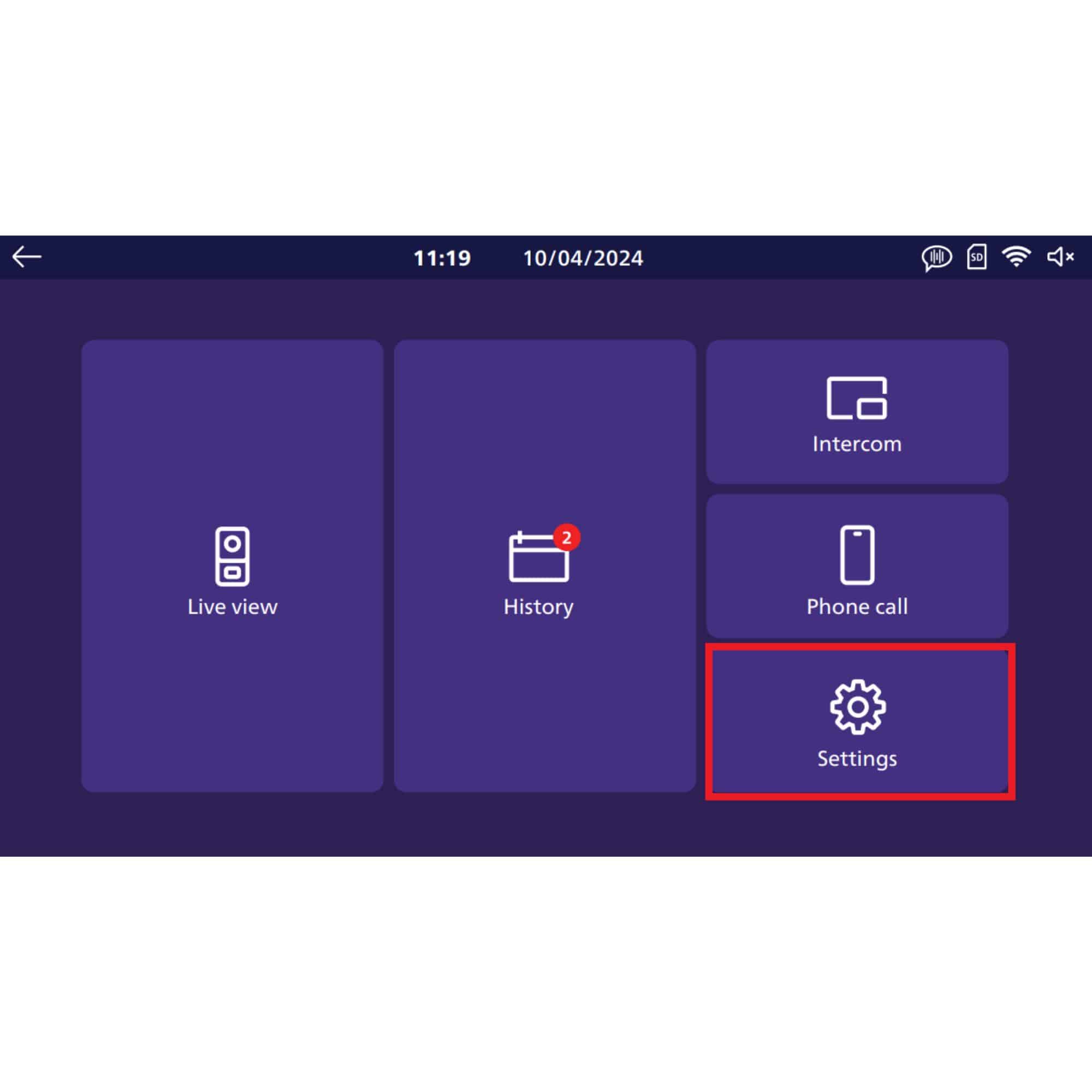
On the secondary monitor
- Go to the "Regulations"
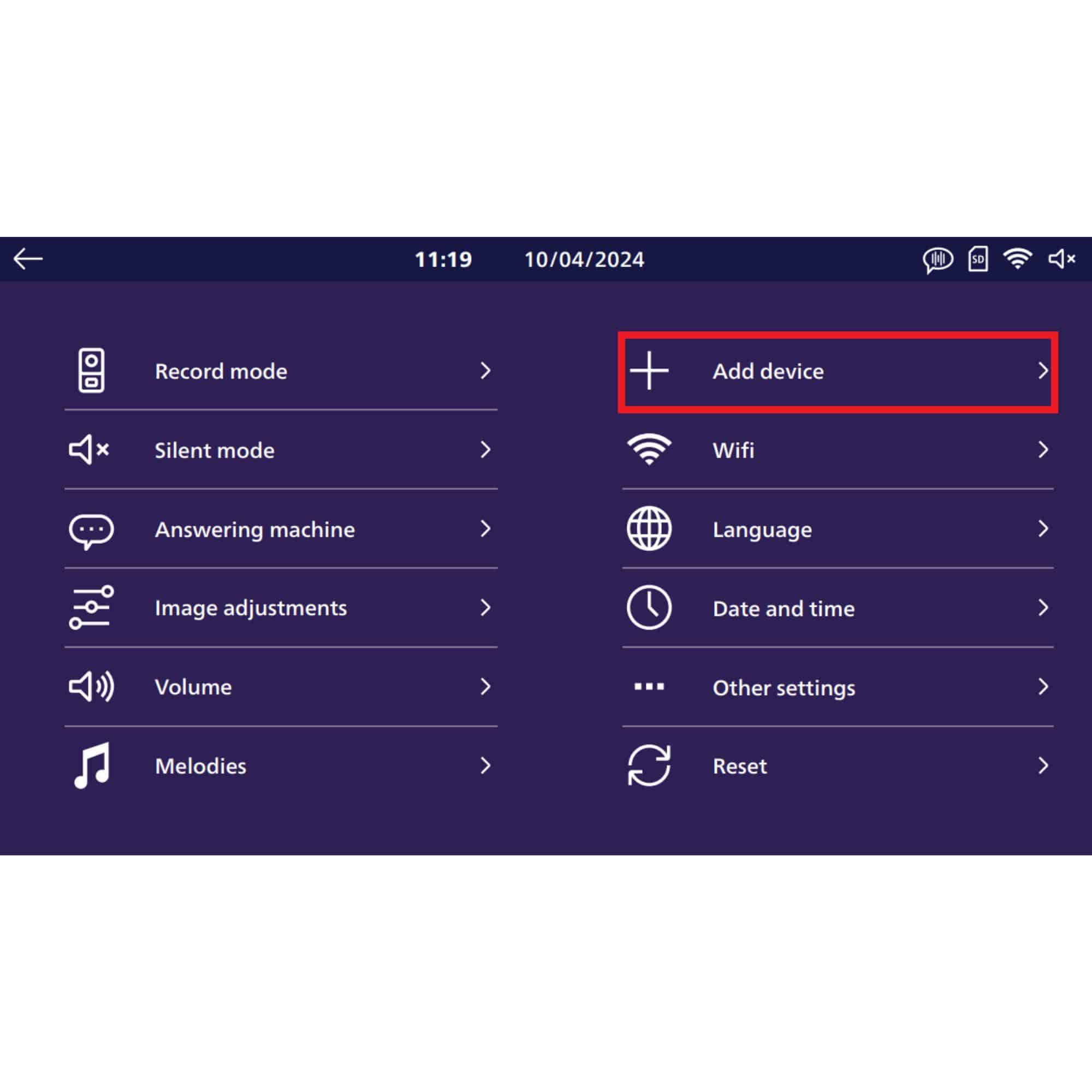
- Press "Add Device"
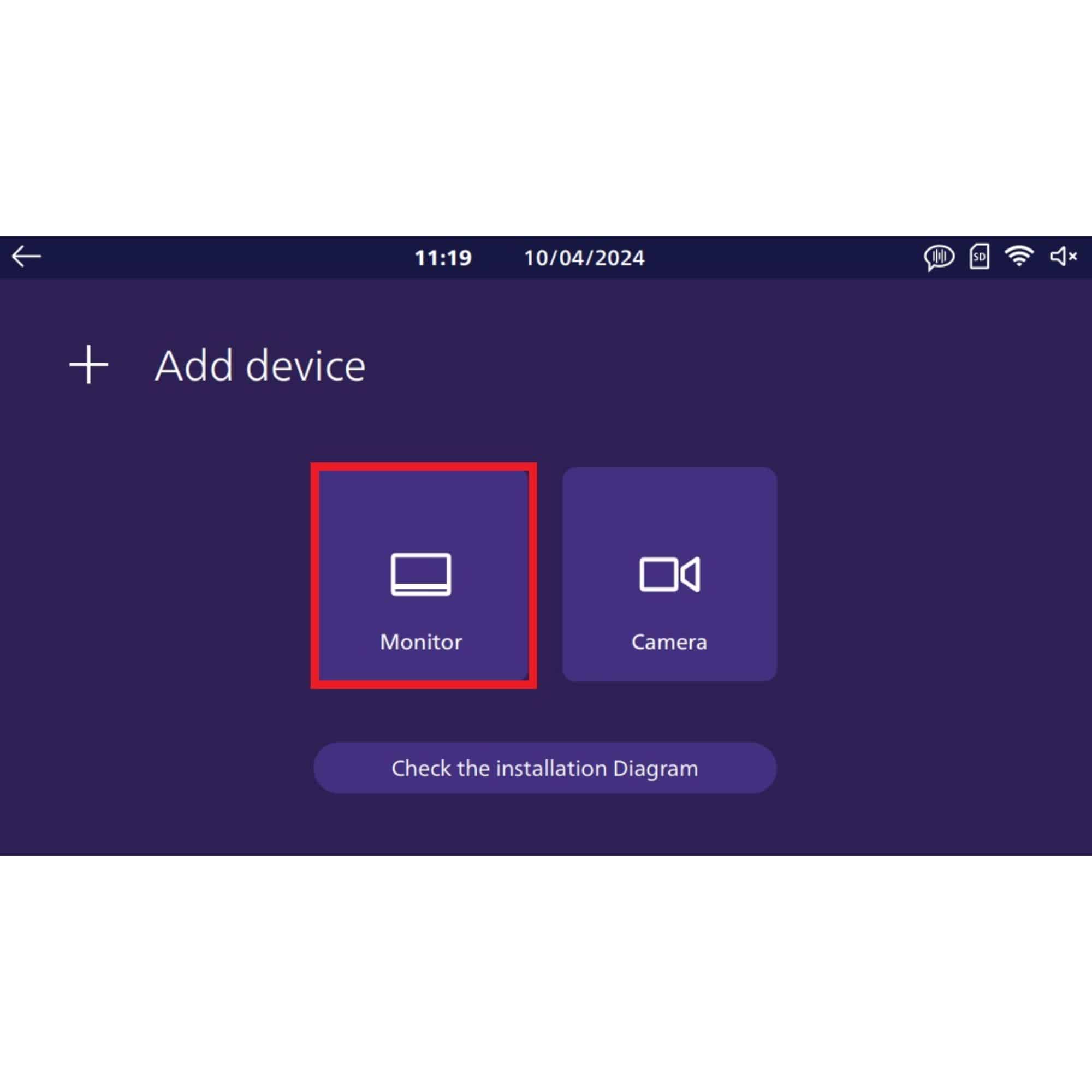
- Press Monitor
- Select "Additional 1" in "Family 1"
- Then click on the return arrow.
- The monitor will restart.
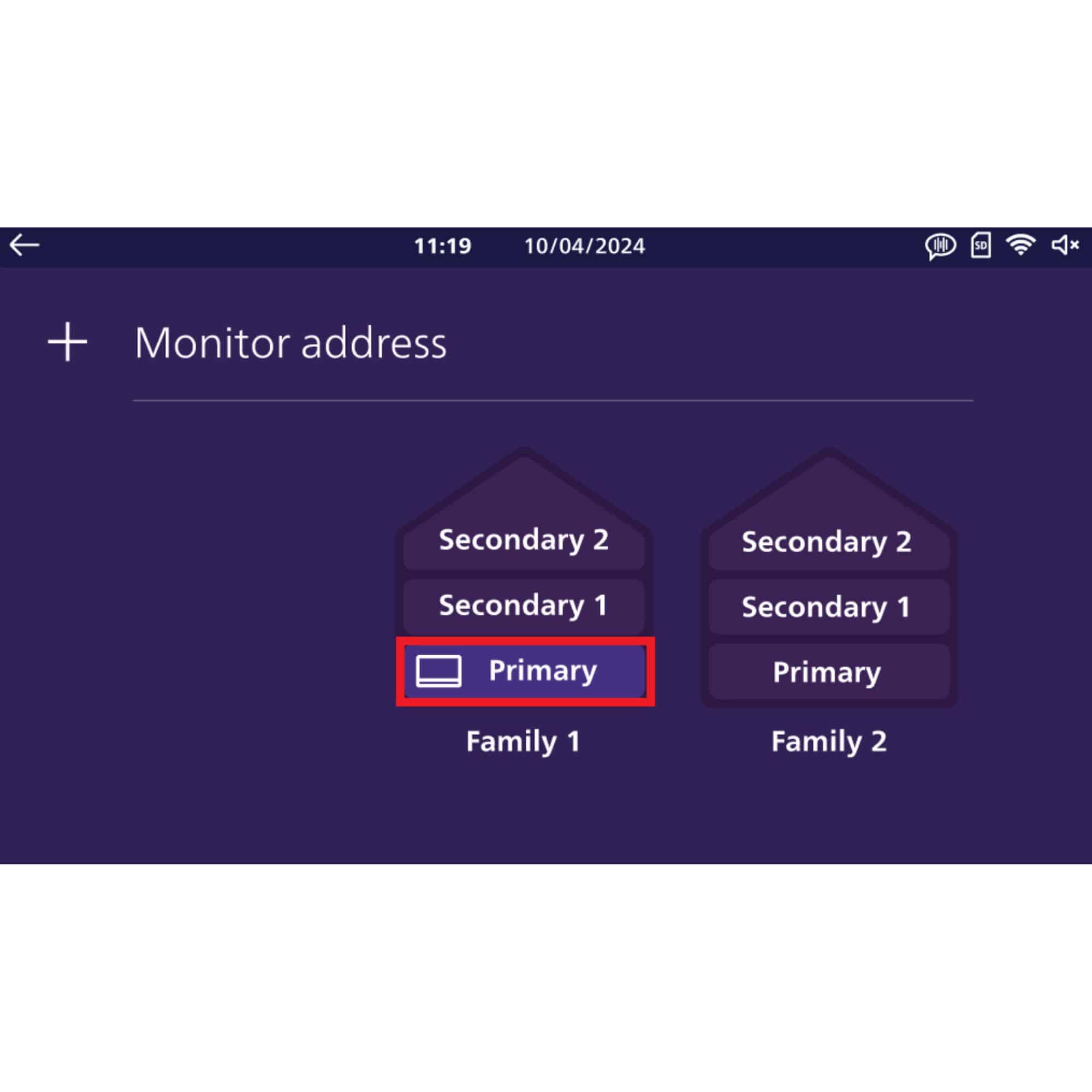
On the main monitor
- Make sure the main monitor is configured as "Main"
Step 4: Make an electric restart of the two monitors
- Disconnect the power supply of both monitors or turn your associated circuit breakerfor both monitors
- Connect the AC adapter or turn your associated circuit breakerfor both monitors.
- Wait for the monitors to have started correctly.
Step 5: Configure the second door station in secondary
- ImmediatelyAfter powering the monitors, Press the bottom button (
 ) secondary street platinum andPress and hold it for 30 seconds until you hear a beepon the door station
 - Street turntable is now configured as a secondary door station.
- Make sure that when pressing the secondary door station, the DOOR2 indication is present on the monitor.
Step 6: Make an electric restart of the two monitors
- Disconnect the power supply of both monitors or turn your associated circuit breakerfor both monitors
- Connect the AC adapter or turn your associated circuit breakerfor both monitors.
- Wait for the monitors to have started correctly.
Step 7: Check the operation
- Check the operation of the two street turntables on both monitors.
- Make sure that when pressing the main door station, the two monitors sound and that the DOOR1 indication is present on the monitors.
- Make sure that when pressing the secondary door station, the two monitors sound and that the DOOR2 indication is present on the monitors.