720337 - Wifi Association EXTEL WAVE 3
Are you having trouble connecting your smartphone to your EXTEL WAVE 3 monitor? Here is a simple and fast procedure to carry out this intervention |
Difficulty: Easy
Time required: 10 minutes
Number of steps: 5
Updated: July 2026
Step 1: Connecting the monitor
- First, it will be necessary to connect your EXTEL WAVE 3 monitor to your internet box
- When the monitor is first powered on, you will be offered a Wi-Fi connection prompt.
- If this has not already been done, connect your videophone to your WiFi network by going to the subWiFi menu
- Click on information
- Then click on the "Add Network" button on the right to start detection of WiFi networks atProximity
- After a few seconds, the surrounding networks are listed on the screen.
- Click on the desired network, thenEnter its Wifi key (his password) and validate to connect your video to WiFi and internet
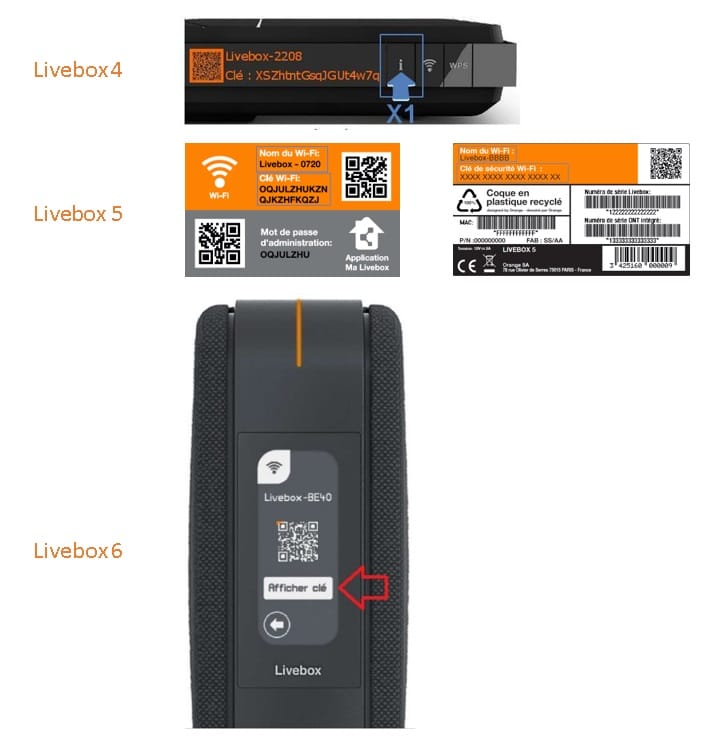
Step 1.1: Where to find the WIFI operator ORANGE key
- LiveBox 4 = The wifi key is visible by clicking on the facade i of your Livebox.
- LiveBox 5 = The wifi key is located on the identification card and also on the label at the outset of your Livebox.
- LiveBox 6 = The wifi key is visible in the Wi-Fi settings accessible from the front screen.
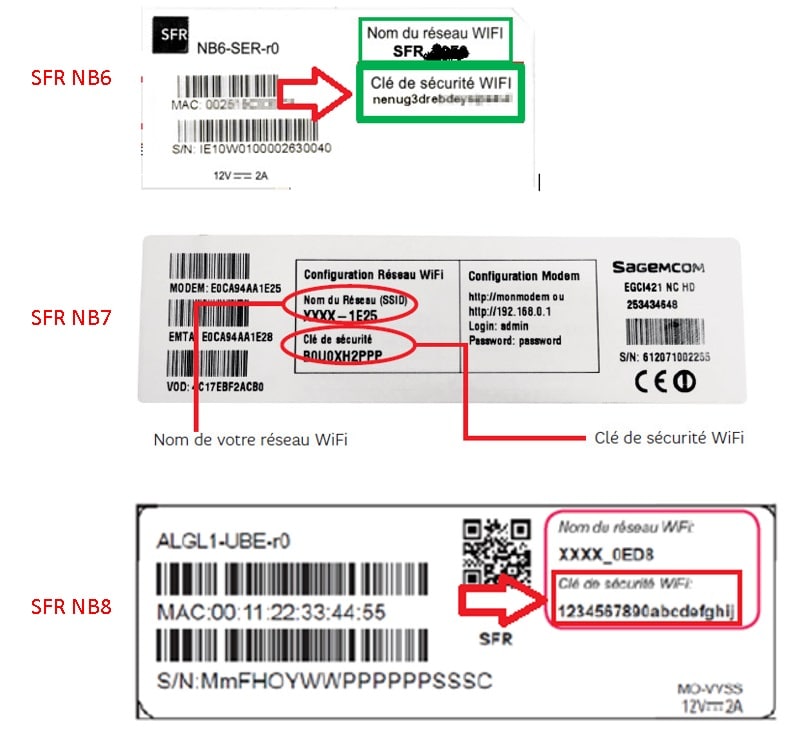
Step 1.2: Where to find the SFR Wifi operator key
- SFR NB6/NB7/NB8 = The wifi key is located on the label on the back of your SFRBox.
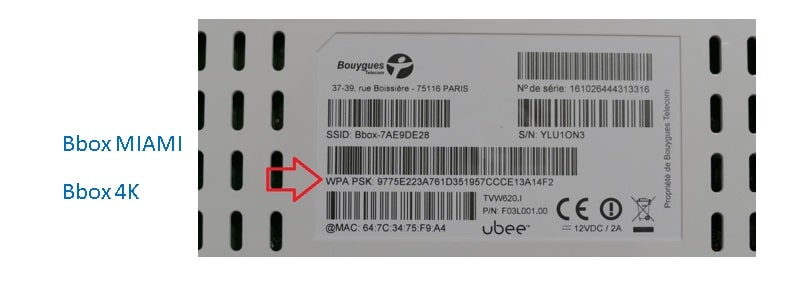
Step 1.3: Where to find the key Wifi operator Bouygues
- Bbox Miami / 4K = The wifi key is located on the label on the back of your Bbox. This is the code entered on the WPA line.
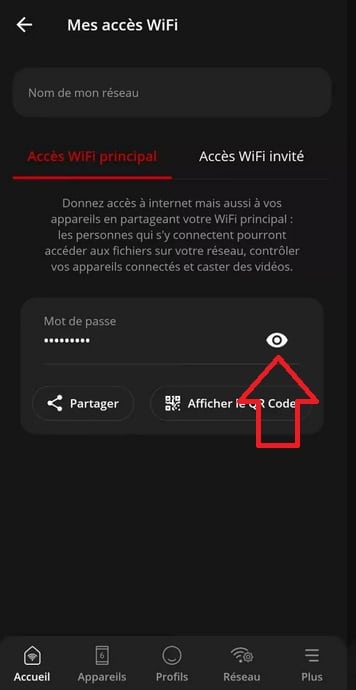
Step 1.4: Where to find the Wifi operator Freebox
Freebox Delta/Pop/Revolution/mini/One/4G+/Crystal
- Please download the Freebox Connect app available on the AppStore and Google Playstore.
- Select the template for your Freebox and identify yourself.
- The wifi key of your Freebox is located in the "My WIFI access" menu.
Step 2: Smartphone Association
- Please bring your smartphone and launch the EXTEL Connect app (downloadable free on your smartphone's app store)
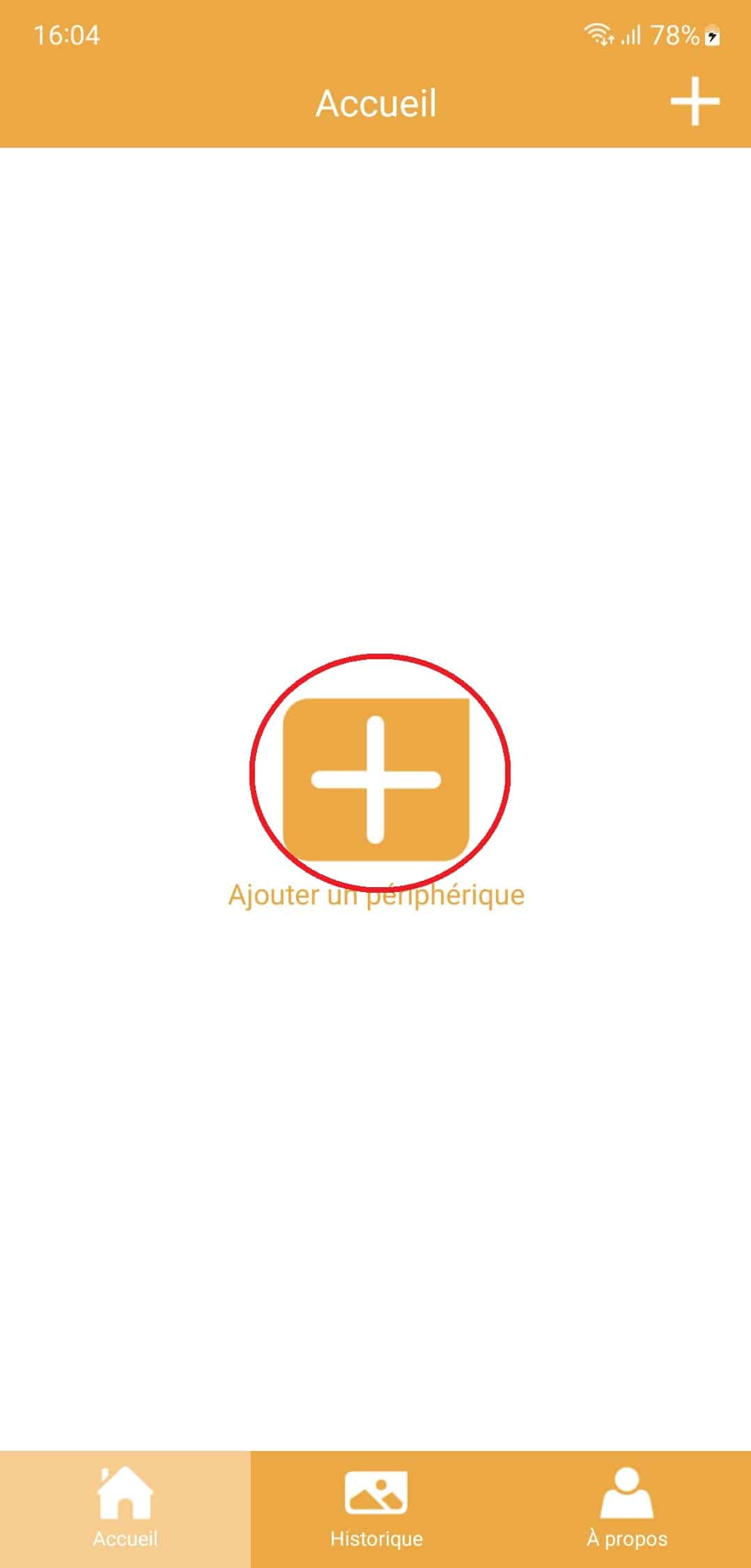
- Make sure your device is not already present in the app and click Add a device.
- If your device is already present, you need to delete it. Select your device, then click Settings and then delete device.
- Click on "My device is already connected to the Internet".
- Click on "EXTEL WAVE 3"
- Select "no defined password?"Flash the QR code in the product menu"
- Then select QR code scan
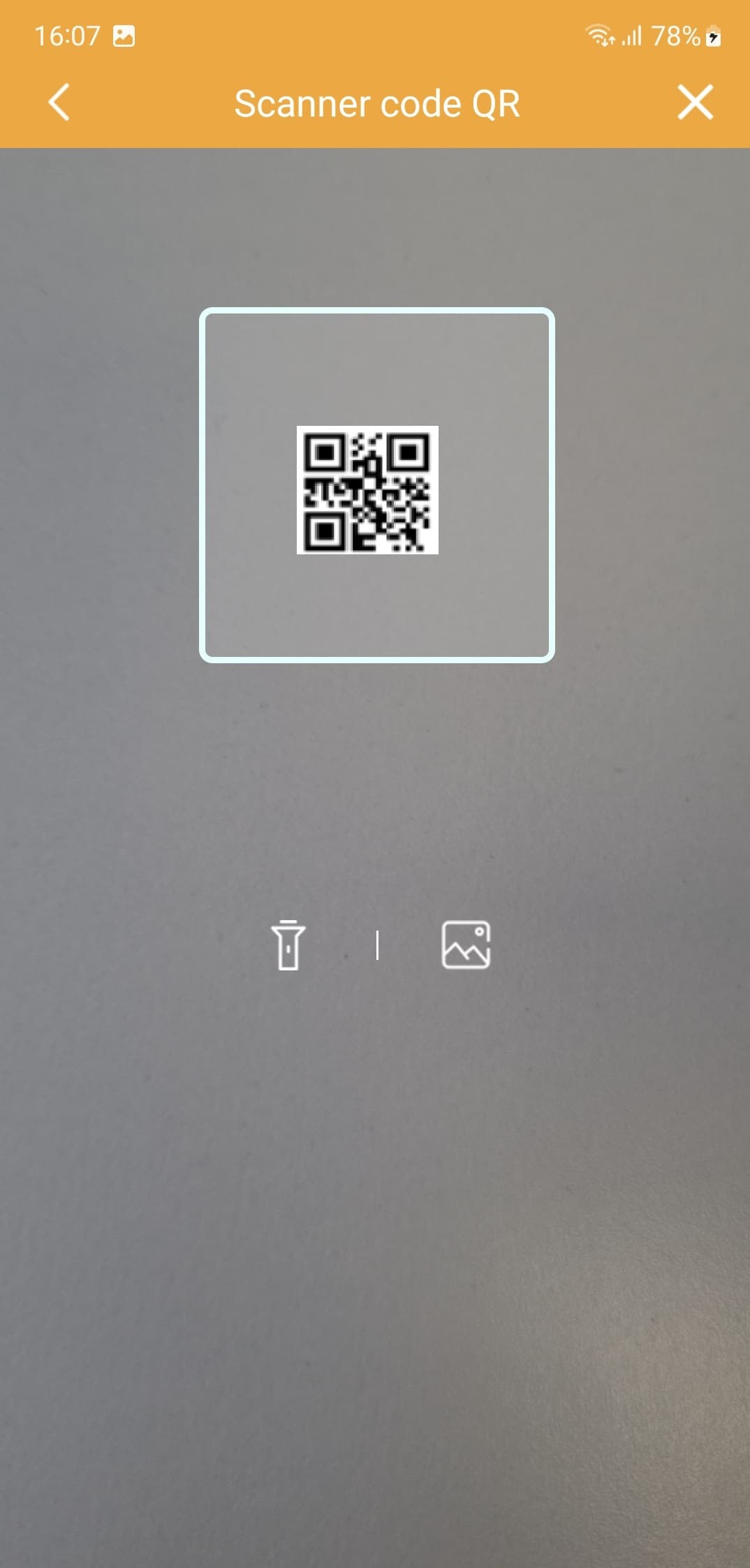
- The QR Code to scan appears in the settingsWifi -> Information
- Reminder: if no QR Code appears inThis menu, your monitor is not connected toInternet. Connect your monitor to the internet beforeto continue by following step 1
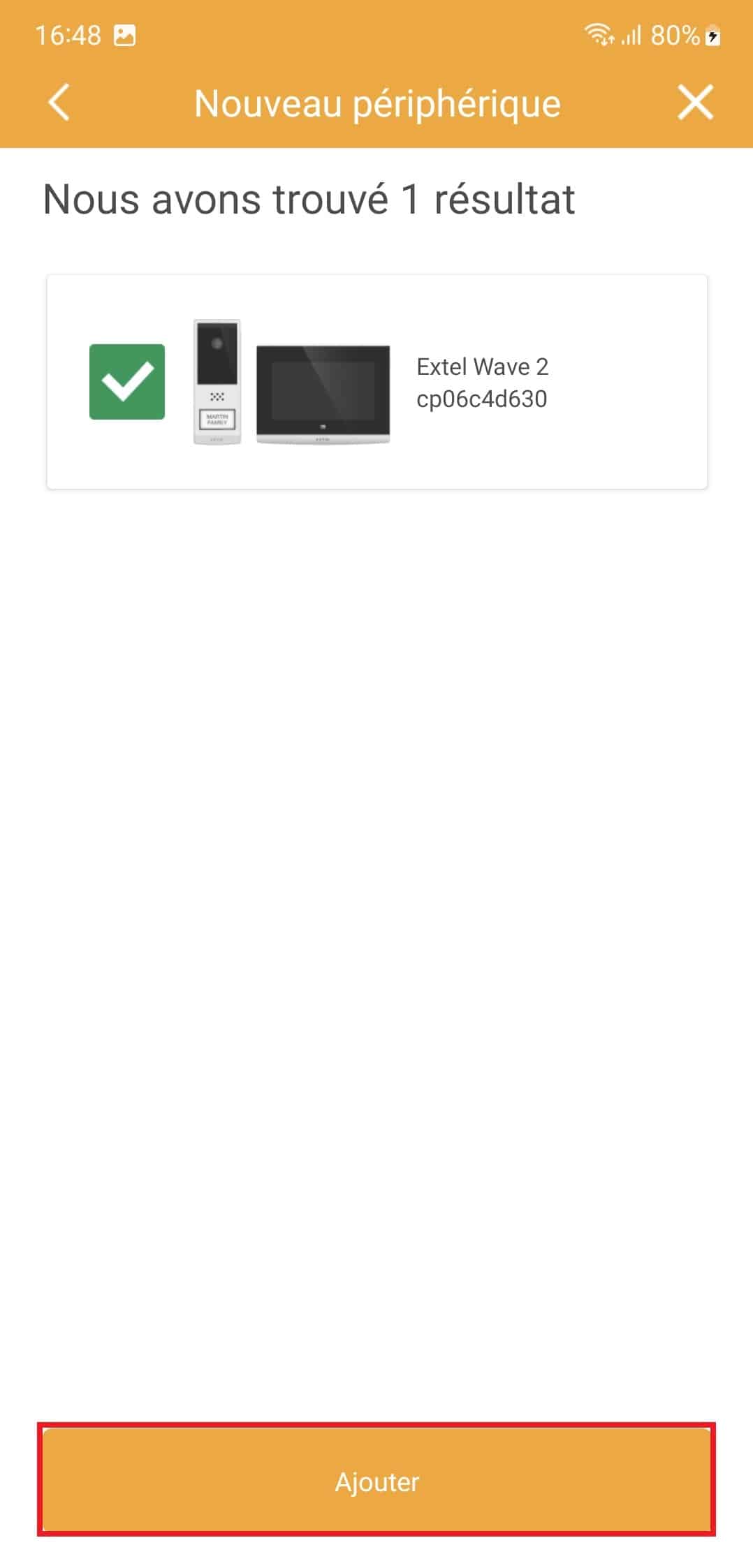
- If the QR code is correct, the application should find your monitor. Click on "Add".
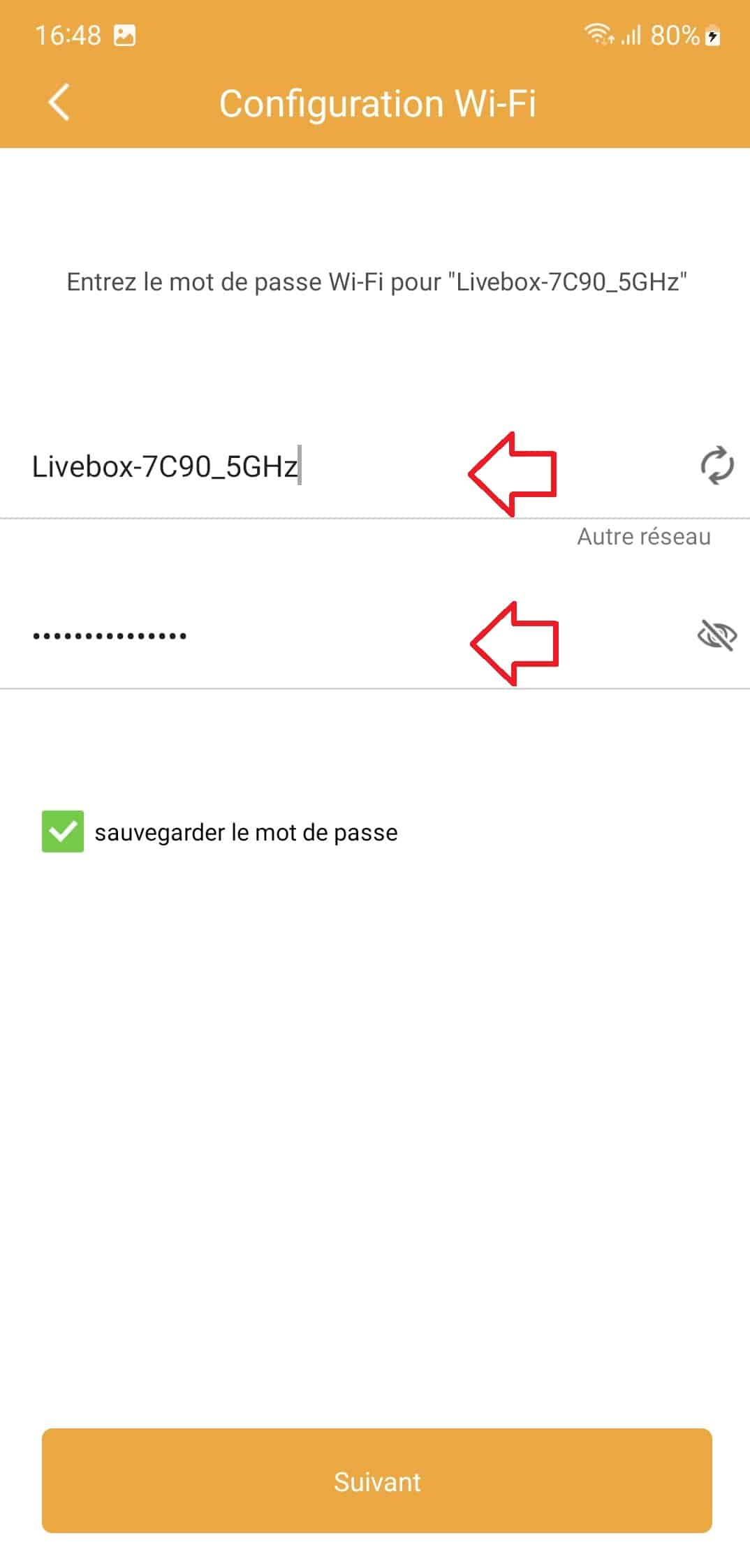
- Please make sure that the name of your internet box is registered in the second line. In our example, it is called Livebox_7C90_5Ghz.
- If no internet box appears, please make sure that the EXTEL connect app has the permissions to use the geolocation of your smartphone as well as you make sure your smartphone is connected to the wifi of your internet box.
- In the second line, please entermanuallythe wifi key of your internet box. (Make sure that it has no more than 18 characters).
Step 2.1: Where to find the Wifi operator ORANGE key
- LiveBox 4 = The wifi key is visible by clicking on the facade i of your Livebox.
- LiveBox 5 = The wifi key is located on the identification card and also on the label at the outset of your Livebox.
- LiveBox 6 = The wifi key is visible in the Wi-Fi settings accessible from the front screen.
Step 2.2: Where to find the SFR Wifi operator key
- SFR NB6/NB7/NB8 = The wifi key is located on the label on the back of your SFRBox.
Step 2.3: Where to find the Bouygues Wifi operator key
- Bbox Miami / 4K = The wifi key is located on the label on the back of your Bbox. This is the code entered on the WPA line.
Step 2.4: Where to find the Wifi operator Freebox
Freebox Delta/Pop/Revolution/mini/One/4G+/Crystal
- Please download the Freebox Connect app available on the AppStore and Google Playstore.
- Select the template for your Freebox and identify yourself.
- The wifi key of your Freebox is located in the "My WIFI access" menu.
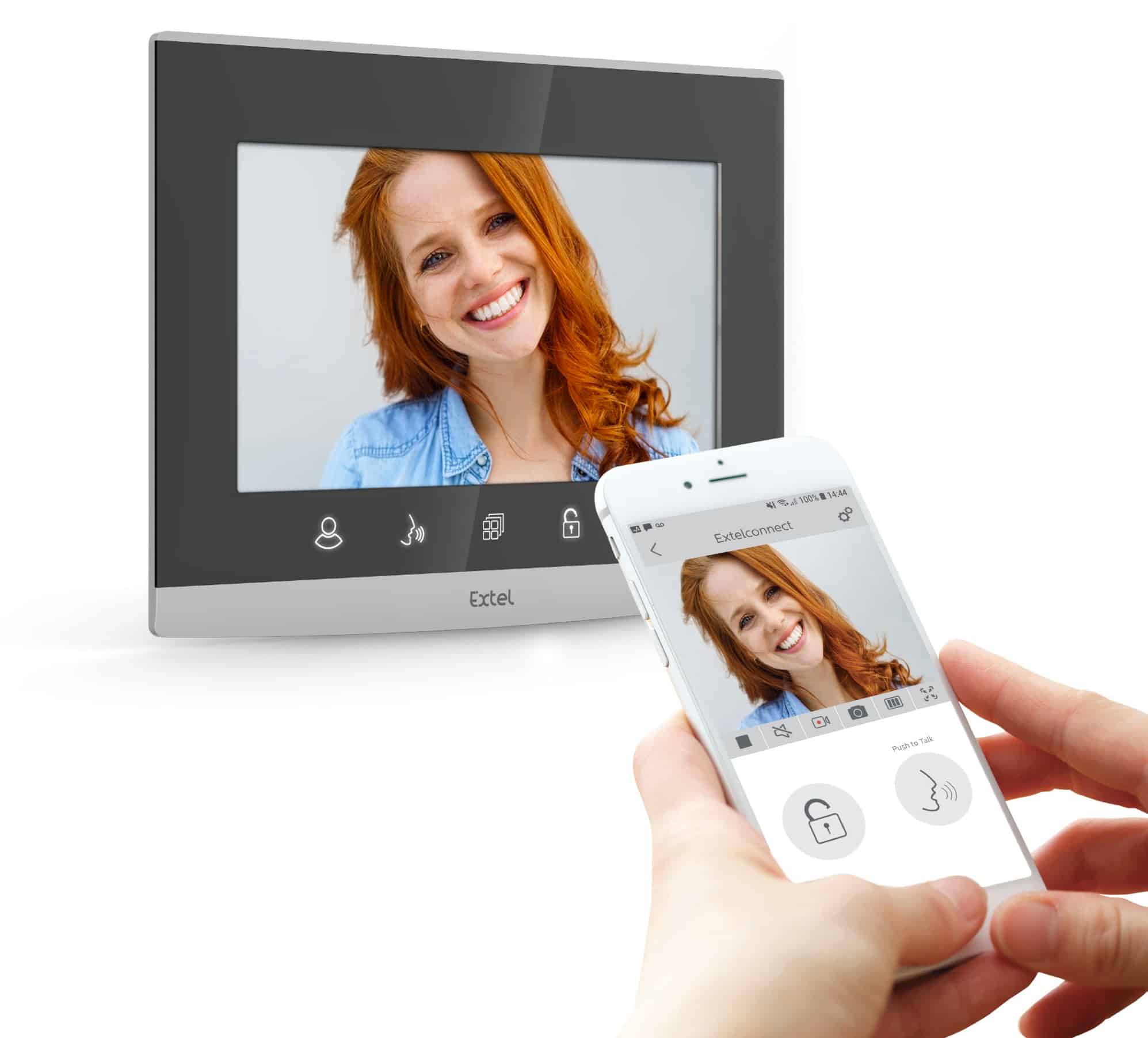
Step 3: Sending the sound message
- Approach your smartphone less than 20cm from the monitor.
- Increase the sound of your smartphone speaker to the maximum and click on "next".
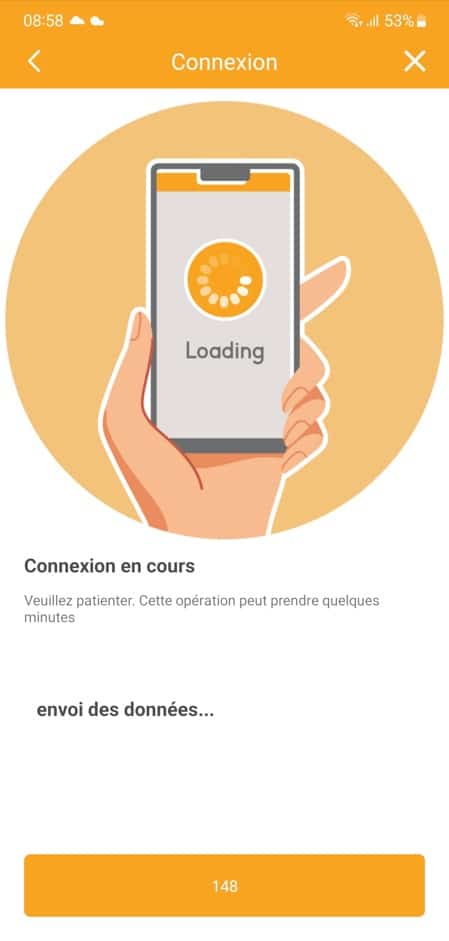
- Your smartphone will issue a series of strident beeps and the app will launch a count.
- Make sure to leave the smartphone less than 20cm from the monitor while sending this sound message.
- During the countdown, your monitor will restart and try to connect to your internet box.
- In case of a forward connection failure, please resume the procedure from step 1.
Step 4: Definition of Name and password
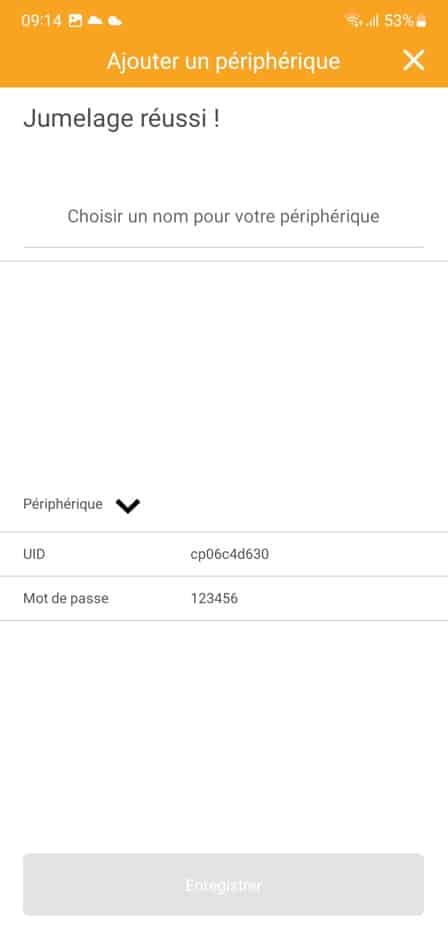
- If you have not made a wifi key input error, a successful display with Jumelage will appear.
- Please enter a username for the device. This will match the name on which the device will appear in the application.
- Click on "Save".
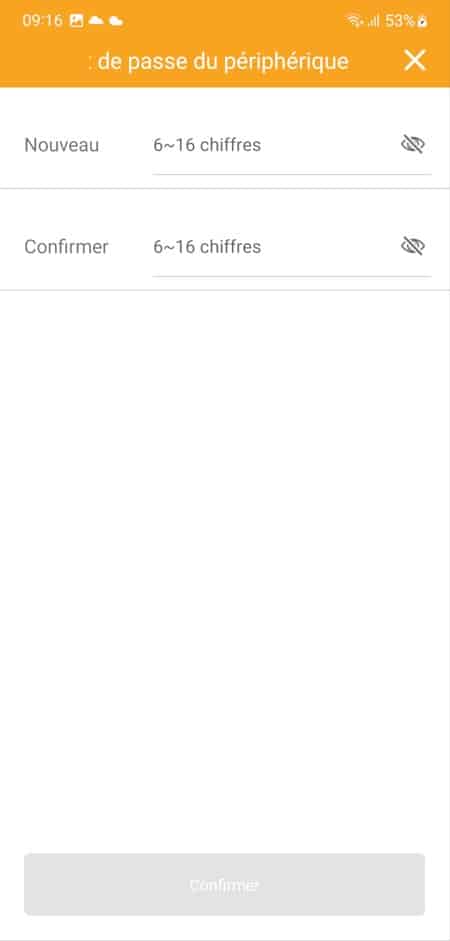
- Please enter a personal password to secure the device in the "NEW" and "CONFIRMER" line.
- This password should only have numbers (Attention, it is not necessary two identical digits which follow one another ex: 11,22,33, etc...)
- The device's default password is 123456 and therefore cannot be used.
- Then click on "Confirm"
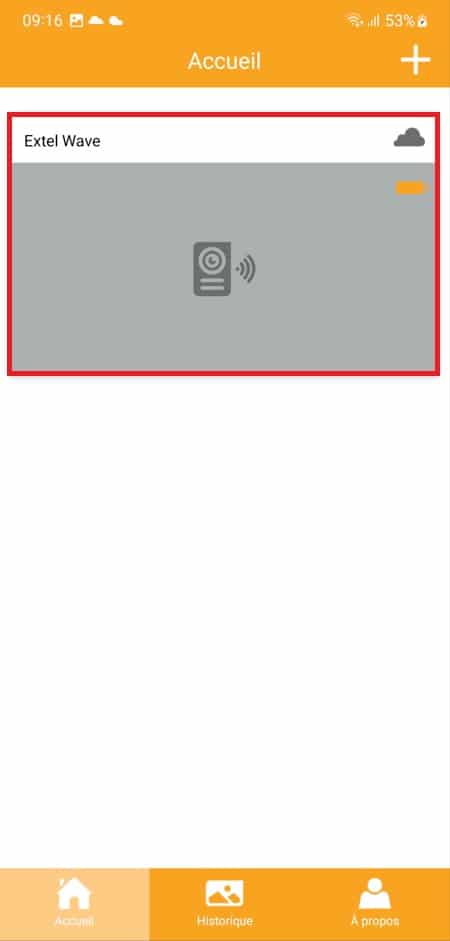
Step 5: Verification of operation
- The monitor is now saved and will appear under the previously saved name.
- Please select it to view the outdoor video.
- The association is over.
Step 6 bonus: Add monitor to another smartphone
- Please bring the second smartphone and launch the EXTEL Connect app (downloadable free on your smartphone's app store)
- Make sure your device is not already present in the app and click Add a device.
- If your device is already present, you need to delete it. Select your device, then click Settings and then delete device.
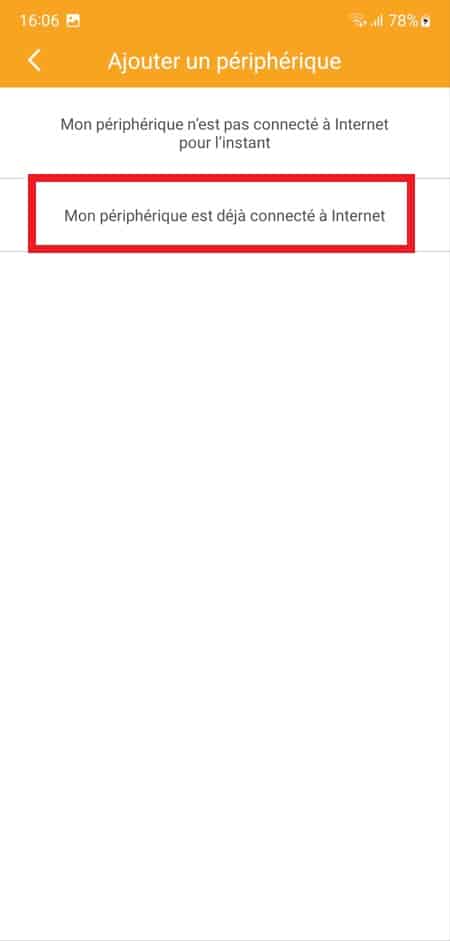
- Click on "My device is already connected to the Internet".
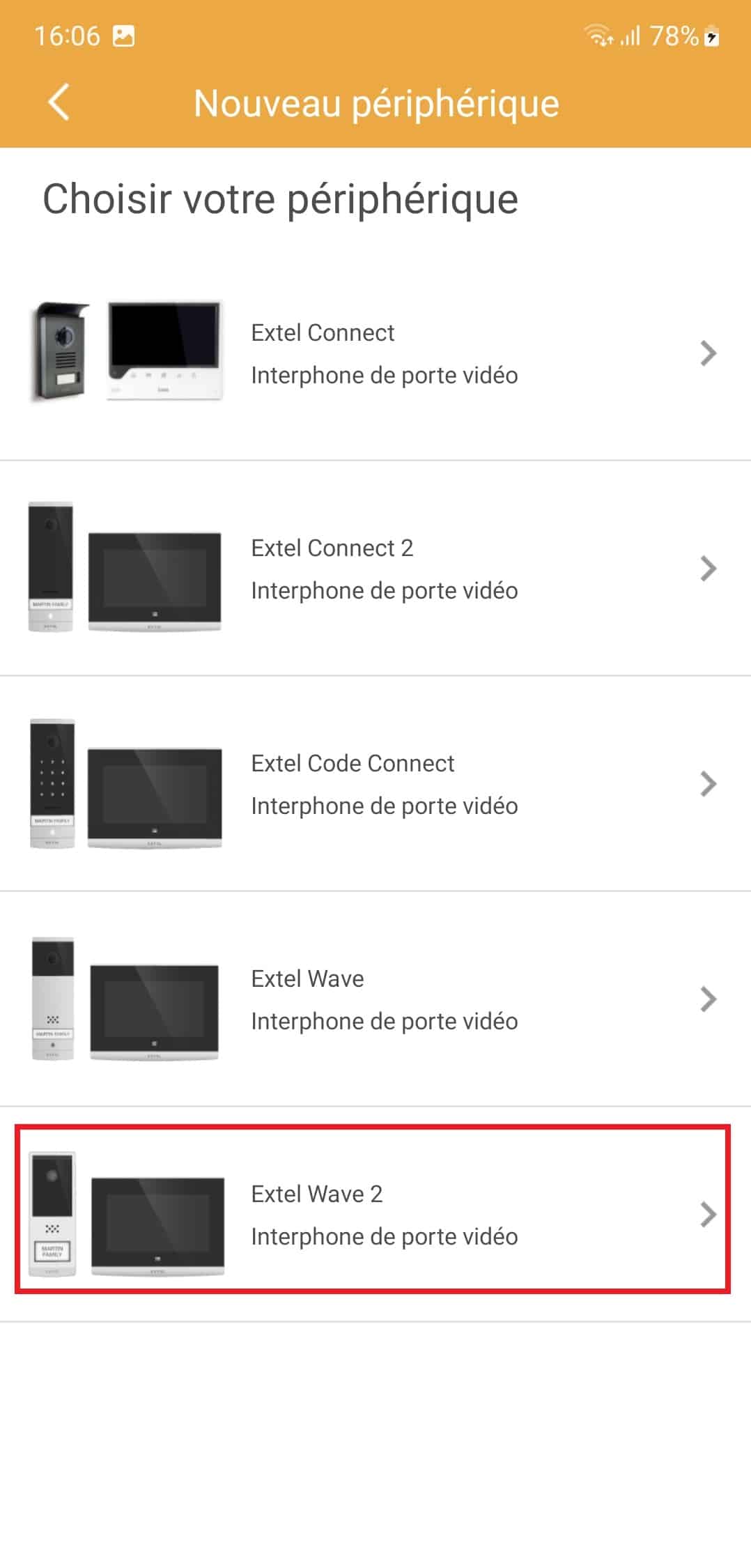
- Click on "EXTEL WAVE 2".
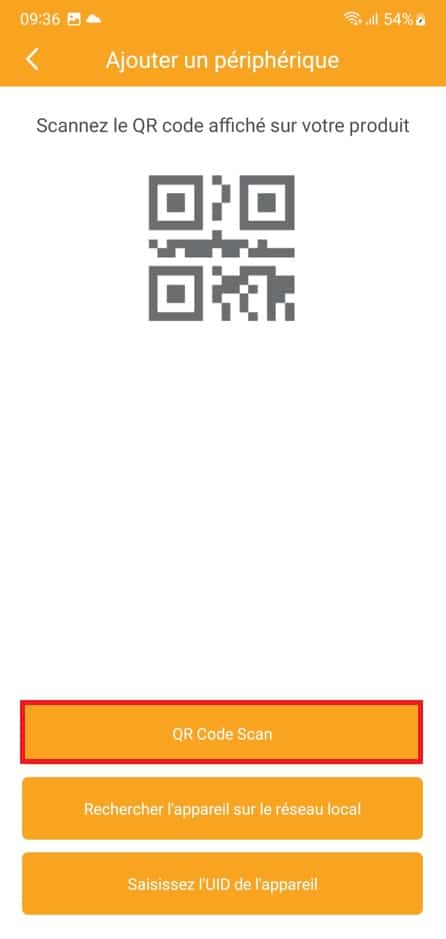
- Click on "QR Code Scan".
- Scan the QR code on the back of the monitor.
- In case of difficulty scanning the QR code, please improve the surrounding lighting and you move slightly from the QR code to improve focus.
- If the QR code is correct, the application should find your monitor. Click on "Add"
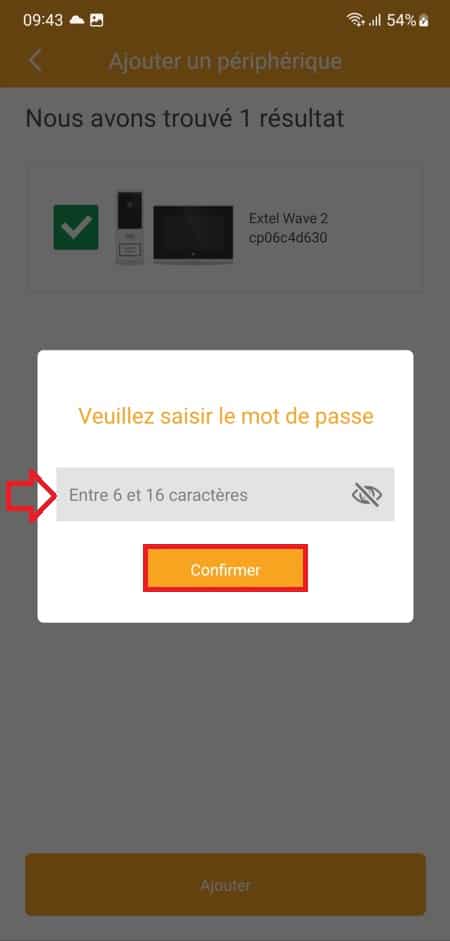
- Enter the password you set in step 4, and then click Confirm.
- Please enter a username for the device. This will match the name on which the device will appear in the application. (it may differ from that chosen in step 4).
- Click on "Save"
- The monitor is now saved and will appear under the previously saved name.
- Please select it to view the outdoor video.
- The association is over